


Why Tables Are the Hardest Extraction Problem
Tables contain some of the most valuable data in business documents. Invoice line items. Bank statement transactions. Purchase order details. Financial reports. Inventory lists. Price sheets.
But tables are also the hardest part of PDF extraction. Text extraction gives you text in reading order. It does not tell you where rows and columns begin and end. It does not distinguish headers from data. It does not preserve the relationships between cells.
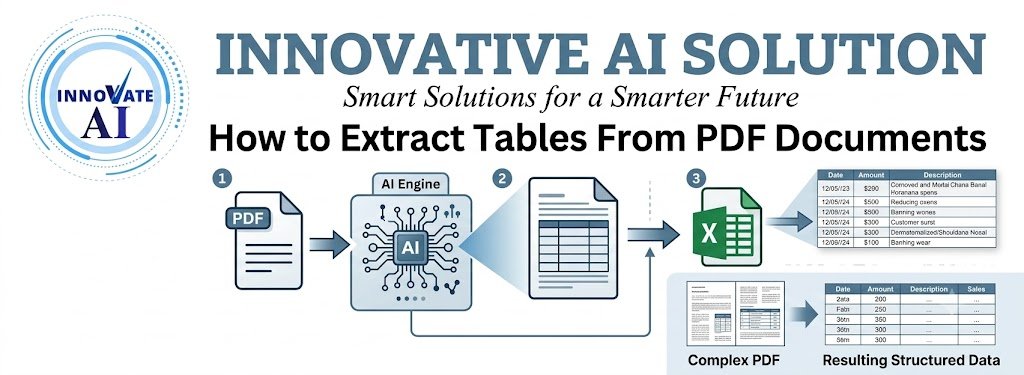
A PDF table is a visual arrangement. Cells are positioned on a page, sometimes with drawn lines, sometimes without. To software, the table is just text scattered across coordinates. Reconstructing the table structure — rows, columns, cells, headers — requires understanding the visual layout.
This is why table extraction is a distinct problem from text extraction. And why it often requires specialised tools and AI models.
This guide covers how to extract tables from PDF documents in 2026. It addresses both text PDFs and scanned PDFs, the methods and tools available, accuracy considerations, costs in India, and the use cases where table extraction delivers value.
For organisations building document automation, Innovative AI Solutions provides specialised AI development services and document automation solutions.
Types of PDF Tables
Table Structures
| Table Type | Characteristics | Difficulty |
|---|---|---|
| Bordered tables | Visible grid lines | Easier |
| Borderless tables | No lines, alignment only | Harder |
| Mixed tables | Some borders, some not | Harder |
| Nested tables | Tables within tables | Hardest |
| Multi-page tables | Continue across pages | Complex |
| Rotated tables | Sideways orientation | Complex |
Table Content Types
| Content Type | Example |
|---|---|
| Numeric | Financial data, quantities |
| Text | Descriptions, names |
| Mixed | Invoice line items |
| Merged cells | Headers spanning columns |
| Multi-line cells | Wrapped text |
Table Sources
| Source | Extraction Challenge |
|---|---|
| Text PDF | Text positioning available |
| Scanned PDF | OCR required first |
| Image PDF | Full OCR pipeline |
| Mixed PDF | Hybrid approach |
Methods for Text PDFs
Method 1: Coordinate-Based Extraction
Uses text positioning to infer table structure.
How it works:
Extract text with coordinates
Cluster text by y-coordinate (rows)
Cluster text by x-coordinate (columns)
Assign cells to grid
Tools: pdfplumber, Camelot (stream mode)
Best for: Borderless tables with consistent alignment.
Method 2: Line-Based Extraction
Uses drawn lines to identify table structure.
How it works:
Detect horizontal and vertical lines
Identify intersections
Build grid from lines
Assign text to cells
Tools: Camelot (lattice mode), Tabula
Best for: Bordered tables with clear grid lines.
Method 3: AI-Based Extraction
Uses machine learning to detect tables and cells.
How it works:
Detect table regions
Identify rows and columns
Extract cell content
Handle merged cells and complex structures
Tools: AI document platforms, custom models
Best for: Complex tables, variable layouts.
Method 4: Hybrid Extraction
Combines multiple approaches.
How it works:
Try line-based detection
Fall back to coordinate-based
Use AI for ambiguous cases
Validate results
Best for: Mixed document sets.
Tool Comparison for Text PDFs
| Tool | Approach | Strengths | Limitations |
|---|---|---|---|
| Camelot | Lattice + stream | Good for bordered tables | Struggles with complex layouts |
| Tabula | Line-based | Easy to use | Limited to bordered tables |
| pdfplumber | Coordinate-based | Flexible, Python | Requires configuration |
| AI platforms | ML-based | Handles complex tables | Higher cost |
Methods for Scanned PDFs
The Additional Challenge
Scanned PDFs require OCR before table extraction.
text
Scanned PDF
↓ Render pages to images ↓ OCR (text extraction) ↓ Table detection ↓ Cell extraction ↓ Structured output
Method 1: OCR + Line Detection
After OCR, use line detection on the original image.
How it works:
OCR extracts text with positions
Detect lines in the image
Map text to detected cells
Method 2: OCR + AI Table Detection
Use AI models to detect tables from the image.
How it works:
AI detects table regions
AI identifies rows and columns
OCR extracts cell content
Assemble table structure
Method 3: Vision-Language Models
Use models that understand documents holistically.
How it works:
Model receives document image
Model identifies tables and structure
Model extracts content
Model outputs structured table
Tool Comparison for Scanned PDFs
| Tool | Approach | Strengths | Limitations |
|---|---|---|---|
| Tesseract + custom | OCR + processing | Free, flexible | Requires development |
| Cloud OCR APIs | OCR with table support | Accurate, managed | Per-page cost |
| Document AI platforms | End-to-end | Handles complex tables | Higher cost |
| Vision-language models | Holistic understanding | Flexible | Requires integration |
Step-by-Step: Extracting a Table
Step 1: Identify the Table
| Consideration | Action |
|---|---|
| Table location | Find the table region |
| Table type | Bordered or borderless? |
| Table complexity | Simple or merged cells? |
| Page distribution | Single page or multi-page? |
Step 2: Choose the Method
| Table Type | Recommended Method |
|---|---|
| Bordered table | Line-based detection |
| Borderless table | Coordinate-based detection |
| Complex table | AI-based detection |
| Scanned table | OCR + AI detection |
Step 3: Extract the Table
text PDF page ↓ Table detection ↓ Row identification ↓ Column identification ↓ Cell extraction ↓ Table assembly
Step 4: Validate the Result
| Validation | Purpose |
|---|---|
| Row count | Expected number of rows? |
| Column count | Expected number of columns? |
| Cell content | Values make sense? |
| Totals | Sums match? |
| Cross-reference | Match other data? |
Step 5: Output the Data
| Format | Use Case |
|---|---|
| CSV | Spreadsheet import |
| Excel | Detailed analysis |
| JSON | API integration |
| Database | Direct storage |
Handling Common Table Challenges
Challenge 1: Borderless Tables
| Approach | How It Works |
|---|---|
| Whitespace analysis | Use gaps between columns |
| Alignment detection | Use text alignment patterns |
| AI models | Learn table structure |
Challenge 2: Merged Cells
| Approach | How It Works |
|---|---|
| Header detection | Identify header rows |
| Cell spanning | Detect cells spanning columns |
| Normalisation | Flatten merged cells |
Challenge 3: Multi-Page Tables
| Approach | How It Works |
|---|---|
| Header detection | Identify repeating headers |
| Row continuation | Continue rows across pages |
| Table stitching | Combine pages into one table |
Challenge 4: Rotated Tables
| Approach | How It Works |
|---|---|
| Rotation detection | Identify rotated regions |
| Rotation correction | Rotate to horizontal |
| Standard extraction | Extract as normal table |
Challenge 5: Nested Tables
| Approach | How It Works |
|---|---|
| Hierarchical detection | Detect nested structure |
| Recursive extraction | Extract inner tables |
| Representation | Output nested structure |
Accuracy in Table Extraction
Typical Accuracy Rates
| Table Type | Text PDF | Scanned PDF |
|---|---|---|
| Simple bordered | 95–99% | 90–97% |
| Simple borderless | 90–97% | 85–95% |
| Complex bordered | 85–95% | 80–92% |
| Complex borderless | 80–92% | 75–90% |
| Multi-page | 85–95% | 80–92% |
What Affects Accuracy
| Factor | Impact |
|---|---|
| Table complexity | Higher complexity, lower accuracy |
| Image quality | Scanned PDFs harder |
| Border presence | Borders help |
| Consistent alignment | Helps extraction |
| Merged cells | Harder to extract |
| Multi-page | Requires stitching |
Improving Accuracy
| Technique | Impact |
|---|---|
| Better scan quality | Highest |
| Appropriate method | High |
| Validation | High |
| AI models | High for complex tables |
| Human review | Highest final accuracy |
What It Costs in India
Implementation Costs
| Scope | Cost Range (INR) | Cost Range (USD) | Timeline |
|---|---|---|---|
| Basic table extraction (text PDFs) | ₹1,50,000–₹4,00,000 | $1,800–$4,800 | 4–8 weeks |
| With scanned PDF support | ₹3,00,000–₹8,00,000 | $3,600–$9,600 | 8–12 weeks |
| Complex table handling | ₹5,00,000–₹12,00,000 | $6,000–$14,400 | 10–16 weeks |
| Enterprise platform | ₹15,00,000–₹40,00,000+ | $18,000–$48,000+ | 20–36 weeks |
Ongoing Costs
| Cost Category | Monthly Range (INR) | Monthly Range (USD) |
|---|---|---|
| OCR/API usage | ₹5,000–₹50,000 | $60–$600 |
| Infrastructure | ₹5,000–₹30,000 | $60–$360 |
| Human review | ₹30,000–₹3,00,000 | $360–$3,600 |
| Maintenance | ₹10,000–₹50,000 | $120–$600 |
Cost Per Table
| Table Type | Cost (INR) | Cost (USD) |
|---|---|---|
| Simple table | ₹1–₹5 | $0.012–$0.06 |
| Complex table | ₹5–₹20 | $0.06–$0.24 |
| Scanned table | ₹3–₹15 | $0.036–$0.18 |
India-Specific Considerations
Common Indian Table Documents
| Document | Table Content |
|---|---|
| GST invoices | Line items, tax breakdown |
| Bank statements | Transactions |
| Purchase orders | Item details |
| E-way bills | Goods details |
| Financial reports | Financial data |
| Inventory lists | Stock details |
Indian Language Tables
| Language | Table Extraction Support |
|---|---|
| English | Excellent |
| Hindi | Good |
| Hinglish | Moderate |
| Regional languages | Variable |
DPDPA Compliance
| Requirement | Implementation |
|---|---|
| Consent | For personal data processing |
| Data minimisation | Extract only required columns |
| Security | Encryption, access control |
| Audit trails | Log all processing |
Decision Framework
Method Selection Matrix
| Your Table Type | Recommended Method |
|---|---|
| Text PDF, bordered | Line-based (Camelot lattice, Tabula) |
| Text PDF, borderless | Coordinate-based (pdfplumber, Camelot stream) |
| Text PDF, complex | AI-based extraction |
| Scanned PDF, simple | OCR + line detection |
| Scanned PDF, complex | OCR + AI detection |
| Multi-page tables | AI-based with stitching |
Readiness Scorecard
| Criteria | Weight | Score (1–5) | Weighted Score |
|---|---|---|---|
| Table volume | 25% | ||
| Table complexity | 20% | ||
| PDF type (text vs scanned) | 20% | ||
| Accuracy requirements | 15% | ||
| Integration needs | 10% | ||
| Budget | 10% | ||
| Total | 100% | /5 |
Implementation Roadmap
| Phase | What to Build | Timeline |
|---|---|---|
| Phase 1 | Text PDF table extraction | 4–8 weeks |
| Phase 2 | Scanned PDF support | 4–6 weeks |
| Phase 3 | Complex table handling | 4–6 weeks |
| Phase 4 | Validation and integration | 4–6 weeks |
Frequently Asked Questions
1. How do I extract tables from PDF documents?
Choose a method based on table type: line-based for bordered tables, coordinate-based for borderless tables, AI-based for complex tables. For scanned PDFs, OCR is required first.
2. What is the best tool for PDF table extraction?
Camelot and Tabula for simple bordered tables. pdfplumber for flexible coordinate-based extraction. AI platforms for complex tables. The best tool depends on your table types.
3. How do I extract tables from scanned PDFs?
Scanned PDFs require OCR before table extraction. Use cloud OCR APIs with table support, document AI platforms, or vision-language models that understand document structure.
4. How accurate is PDF table extraction?
Simple bordered tables achieve 95–99% accuracy for text PDFs. Complex borderless tables achieve 80–92%. Scanned PDFs achieve lower accuracy depending on quality.
5. How do I handle borderless tables?
Use coordinate-based extraction that clusters text by alignment. AI models trained on table structure also handle borderless tables well.
6. How do I handle tables that span multiple pages?
Detect repeating headers, continue rows across pages, and stitch pages into a single table. AI-based extraction handles multi-page tables better than rule-based methods.
7. How do I handle merged cells?
Detect header rows and cells spanning columns. Normalise merged cells by flattening or representing the hierarchy. AI models handle merged cells better than rule-based methods.
8. How much does PDF table extraction cost in India?
Basic table extraction costs ₹1,50,000–₹4,00,000 ($1,800–$4,800). With scanned PDF support, ₹3,00,000–₹8,00,000 ($3,600–$9,600). Complex table handling costs ₹5,00,000–₹12,00,000 ($6,000–$14,400).
9. Can I extract tables from PDFs to Excel?
Yes. Table extraction tools output CSV or Excel formats that can be opened in spreadsheet software. Validation ensures the extracted data matches the original.
10. How do I validate extracted table data?
Check row count, column count, cell content, and totals. Cross-reference against other data sources. Validate sums and calculations.
11. Can AI extract tables from Indian language PDFs?
English tables are excellent. Hindi tables are good. Hinglish is moderate. Regional language support varies. Verify capability for your specific documents.
12. How can Innovative AI Solutions help?
Innovative AI Solutions is a Delhi-based AI development company specialising in PDF table extraction. We build extraction pipelines for text and scanned PDFs with table detection, cell extraction, validation, and system integration — designed for Indian document types and DPDPA compliance. Explore our AI development services to accelerate your document automation.
Contact Innovative AI Solutions
Ready to extract tables from your PDFs?
We help Indian businesses build PDF table extraction pipelines with validation and system integration.
Contact Information
Innovative AI Solutions
📍 Netaji Subhash Place, Pitampura, Delhi – 110034
🌐 Website: https://innovativeais.com 📧 Email: info@innovativeais.com
📞 Phone: +91 7464 099 059 / +91 96899 67356
Business Services
• AI Automation • AI Development • AI Consulting • Machine Learning Solutions • Deep Learning Solutions • Generative AI Services • NLP Solutions • AI Agents • AI Chatbots • Voice AI • CRM Development • Custom Software Development • Website Development • Mobile App Development
About the Author
Abhishek Kumar
Founder & CEO, Innovative AI Solutions
5+ years building production AI systems for Indian businesses. Based in Delhi, serving clients across India.
Ready to build AI solutions for your business?
Innovative AI Solutions — Delhi's leading AI development company. Free consultation available.
Get Free Consultation →
A practical 2026 guide to extracting tables from PDF documents — methods for text and scanned PDFs, tool comparison, accuracy, costs, and India use cases.
#PDFTableExtraction #2026 #TableExtraction #PDFParsing #TableRecognition #DataExtraction #ScannedPDFs #InvoiceProcessing #BankStatements #Camelot #Tabula #AIExtraction #DocumentAI #Validation #Accuracy #India #DelhiNCRTech #EnterpriseApps #BusinessAutomation #TechIndia #DigitalProducts #DocumentProcessing #DataPipeline #ProcessAutomation #InnovativeAISolutions
Copyright © 2015–2026 Innovative AI Solutions. All Rights Reserved. | Privacy Policy | Terms & Conditions